Version: 1.0
Last Updated: July 2026
A step-by-step guide for finding an Extron device on the network, identifying its hostname, and accessing files through the device web interface FileZilla
Before You Start
- Ensure Advanced IP Scanner is installed and available to use using the link if needed.
Advanced IP Scanner - Download Free Network Scanner
- Ensure FileZilla is installed and available to use using the link if needed. Download FileZilla Client for Windows (64bit x86)
- Make sure the Extron device is powered on and connected to the network.
- Confirm you have the correct credentials for the Extron device.
Step 1: Locate the Device
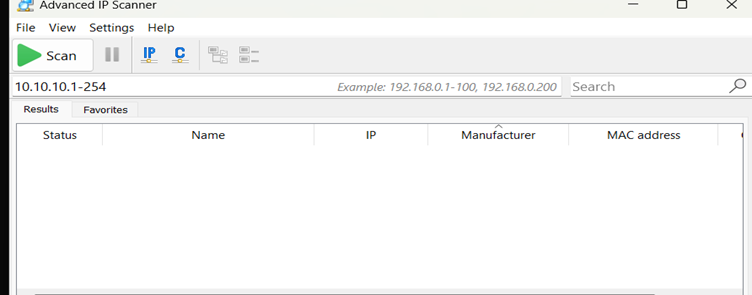
Open Advanced IP Scanner and select Scan. Allow the scan to complete so the available devices on the network are displayed.
Step 2: Find the IP Address

In the scan results, search for the manufacturer name Extron Electronics. Once the Extron device has been identified, note the IP address shown in the results.
Step 3: Find the Hostname
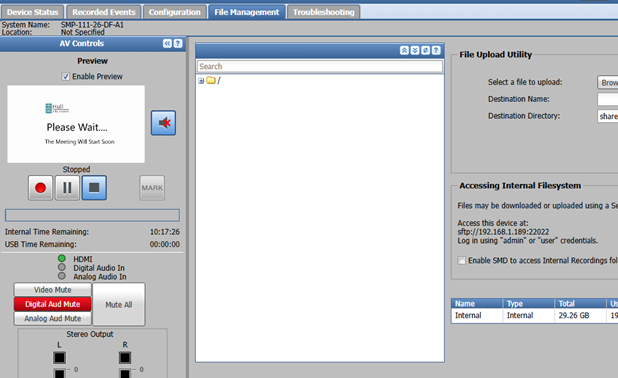
Select the device HTTP link from Advanced IP Scanner to open the Extron web interface or search the Ip address in the address bar. Once the page has loaded, select File Management. Look for the section labelled Access this device at; the value shown below this label is the device hostname.
Step 4: Retrieve the File
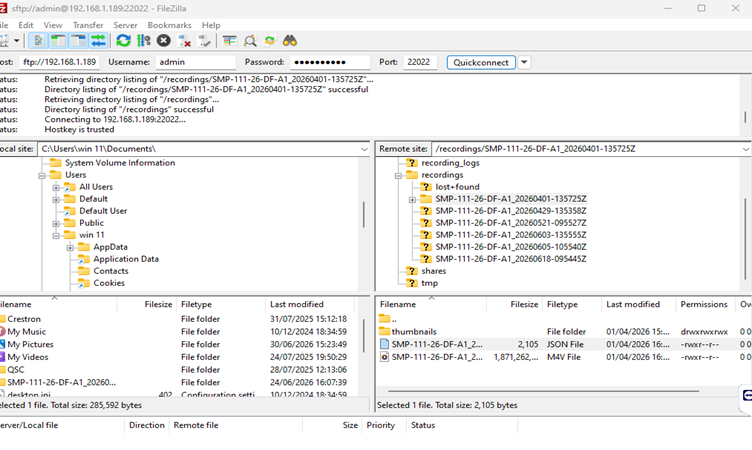
Open FileZilla and Enter the required credentials when prompted (the default username is admin and the default password is the serial number if it is not working it most likely has been changed, contact Nuway for assistance). After signing in, navigate through the file management area to locate the required file. Once found, open or download the file as needed.
Troubleshooting
- If the device does not appear in Advanced IP Scanner, confirm it is powered on and connected to the same network.
- If multiple Extron devices appear, check the IP address, hostname, or location details to confirm the correct device.
- If the web interface does not load, try refreshing the page or checking network connectivity.
- If your credentials do not work, confirm the correct username and password before attempting again, the default username is admin and the default password is the serial number if it is not working it most likely has been changed, contact Nuway for assistance.
Please note: Any web links included in this document are provided for reference only. Nuway cannot guarantee the availability or accuracy of external content and accepts no responsibility for changes to third-party websites.
Was this article helpful?
That’s Great!
Thank you for your feedback
Sorry! We couldn't be helpful
Thank you for your feedback
Feedback sent
We appreciate your effort and will try to fix the article